# Finding the right participants
# Finding the right participants
This guide demonstrates how to find and select the right participants for your studies using Prolific's API.
## Pre-screeners
Pre-screeners (also called Filters) allow you to restrict access to your study based on a wide variety of criteria. This guide will demonstrate how to select and use pre-screeners via API.
For more information on the types of screeners we have, please read the help center article [here](https://researcher-help.prolific.com/en/article/filters).
```mermaid
%%{init: {
"theme": "base",
"flowchart": {
"htmlLabels": true,
"curve": "stepAfter"
},
"themeVariables": {
"primaryColor": "#fafafa",
"primaryBorderColor": "#e7e7ea",
"primaryTextColor": "#0f2ac9",
"fontFamily": "Inter, system-ui, sans-serif",
"fontSize": "15px",
"lineColor": "#bfc1c7",
"lineWidth": 2,
"defaultLinkColor": "#0f2ac9"
},
"themeCSS": ".node.finish a, .node.start a { color: currentColor !important; }"
}}%%
flowchart TD
A["List the filters"]:::start
B["Find the pre-screener or filter set to use"]:::note
C{"What is the type of the pre-screener?"}:::decision
F{"What is the data type of the pre-screener?"}:::decision
I["Choices of this pre-screener are in the response"]:::note
J["Provide the filter_id and the IDs of your selected values"]:::finish
K["Provide the filter_id and the selected values as described by the data type"]:::finish
L["Minimum and maximum values are inclusive"]:::note
M["Provide the filter_id and selected_range, containing the inclusive lower and upper bounds"]:::finish
A --> B --> C
C -- " Select " --> F
C -- " Range " --> L --> M
F -- " Choice ID " --> I --> J
F -- " Other " --> K
classDef start fill:#0f2ac9,color:#ffffff,stroke:#0f2ac9,stroke-width:4px;
classDef decision stroke:#bfc1c7,color:#4b5563,stroke-width:4px;
classDef note stroke:#e7e7ea,color:#4b5563,stroke-width:4px,stroke-dasharray:4;
classDef finish fill:#0f2ac9,color:#ffffff,stroke:#0f2ac9,stroke-width:4px;
```
Get the list of pre-screeners
There are 2 types of pre-screeners:
* `select`: select from one of more options from a list of pre-defined choices e.g., first language
* `range`: specify an upper and/or a lower bound e.g., age
When creating a study, specify a list of pre-screeners
This is an optional step.
You can save combinations of pre-screeners as screener sets, to reuse across studies. These are useful if you're
running multiple studies with the same audience criteria.
## In-study screening
Custom screening lets you check for participant characteristics that aren't available in our built-in pre-screening options. This guide will demonstrate how to create and manage in-study screening via API.
For more detail on custom screening, including a video demo, see the [help center article](https://researcher-help.prolific.com/en/article/custom-screening).
Create the survey with pre-screening questions. Set up the survey to take different paths, for example:
* If someone answers "Yes" they'll continue to your main survey
* If it's a "No" they'll be directed to your end of survey message
When participants are screened out, the survey must redirect them to Prolific with the appropriate completion code
(or provide them with the code to enter manually).
Check out our [integration guides](https://researcher-help.prolific.com/en/article/integration-guides) for how to
set up these paths, including how to create your end of survey message in your software.
Create a custom screening study on Prolific, with a screened out completion path
**Screen-out slots**: The maximum number of participants that can be screened out. This is separate from your
study's total number of places. Once the maximum screen-out slots are filled, your study automatically pauses.
**Screen-out reward amount**: The fixed payment for screened-out participants (minimum £0.10/\$0.14). This must be
less than the study reward and cannot be changed after publishing your study.
Publish the study
When participants return to Prolific with a screened out completion code, the submission status is set to
`SCREENED_OUT` and they are automatically paid the screen out reward specified.
## Find specialist and domain experts
Prolific creates and manages custom participant groups of specially curated experts, e.g., STEM experts and Language specialists. [Click here](https://researcher-help.prolific.com/en/article/domain-experts) to understand what domain experts are available and how they are verified.
Follow these steps to recruit domain experts for your studies via API:
Identify the custom group associated with the expert
When creating a study, specify the pre-screening filter ID
Publish the study
## Dynamically manage participant eligibility
Within study setup, you can use a participant's **first submission as a decision point**, and automatically block them from re-entering your study if they ***don’t*** meet certain criteria or fail an attention check.
Here’s how to do it:
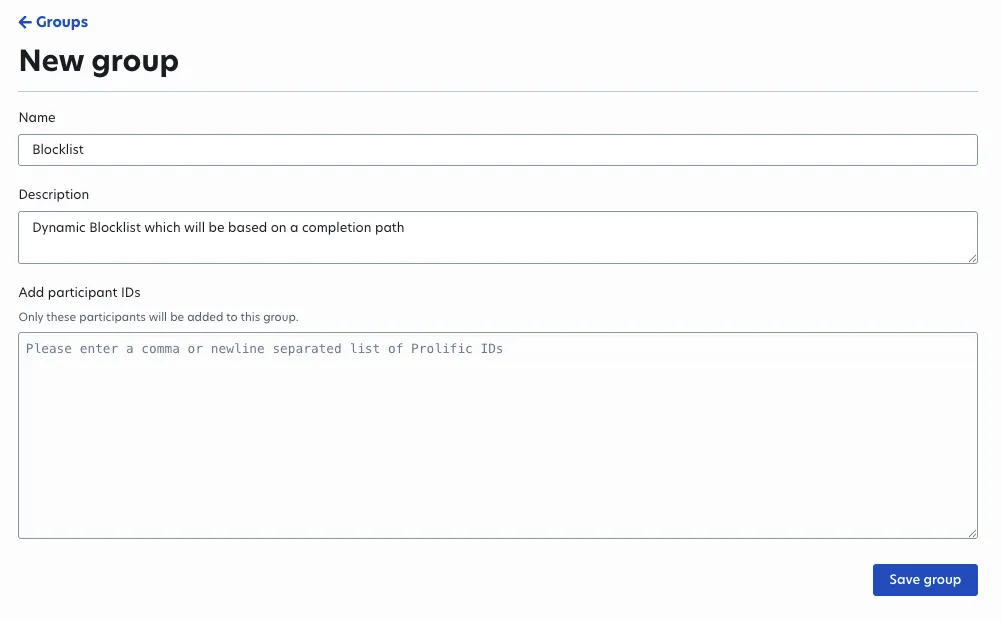
Create a group where screened-out participants will be added. For more information on how to do this [Create a new
participant group](/api-reference/participant-groups/create-participant-group).
Save the `participant_group_id` – you’ll use this in the next step.
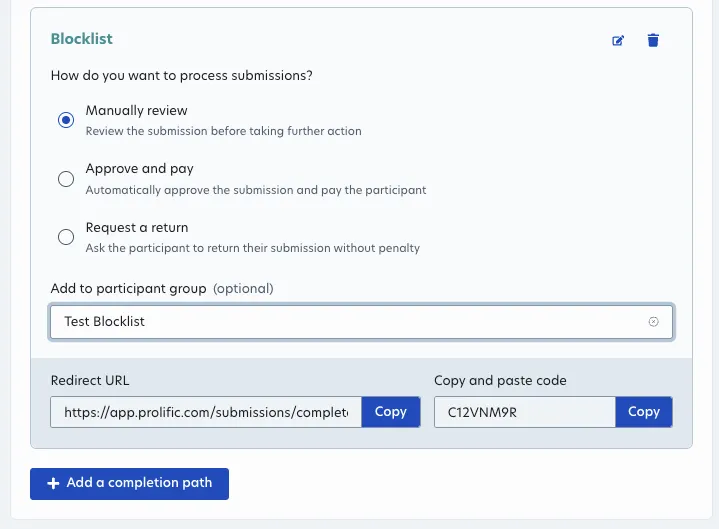
 Use a **completion code with an action** to add disqualified participants to the group, and **block that group from
participating again**.
Participants who use this completion code will be added to the participant group and automatically blocked from
entering the study again.
Use a **completion code with an action** to add disqualified participants to the group, and **block that group from
participating again**.
Participants who use this completion code will be added to the participant group and automatically blocked from
entering the study again.
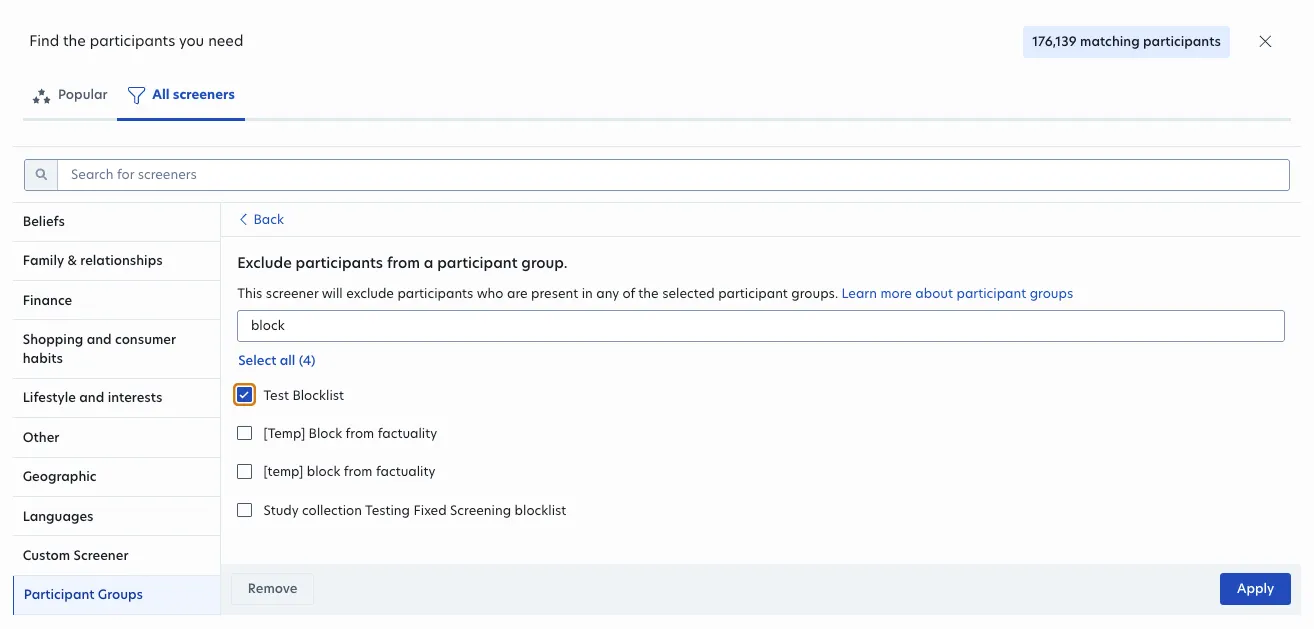
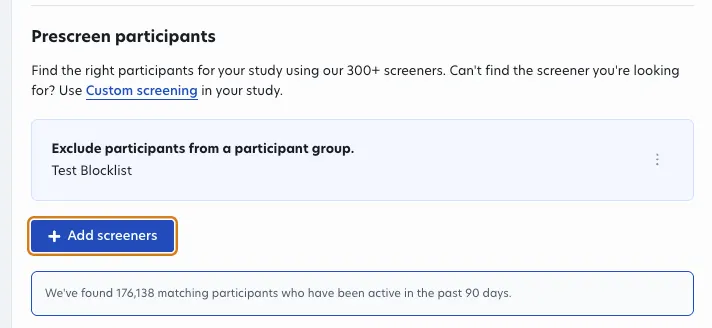 In the request body, `completion_codes` should contain a code with an “ADD\_TO\_PARTICIPANT\_GROUP” action:
```json
"completion_codes": [
{
"code": "GHIJKL",
"code_type": "SCREENED_OUT",
"actions": [
{
"action": "MANUALLY_REVIEW"
},
{
"action": "ADD_TO_PARTICIPANT_GROUP",
"participant_group": ""
}
]
}
]
```
And include this `completion_codes` filter in your study setup:
```json
{
"filter_id": "participant_group_blocklist",
"selected_values": [
""
]
}
```
✨ **Result:** You now have an **adaptive eligibility flow**, letting you use early responses to control who
continues — without needing to pause or reconfigure your study!
In the request body, `completion_codes` should contain a code with an “ADD\_TO\_PARTICIPANT\_GROUP” action:
```json
"completion_codes": [
{
"code": "GHIJKL",
"code_type": "SCREENED_OUT",
"actions": [
{
"action": "MANUALLY_REVIEW"
},
{
"action": "ADD_TO_PARTICIPANT_GROUP",
"participant_group": ""
}
]
}
]
```
And include this `completion_codes` filter in your study setup:
```json
{
"filter_id": "participant_group_blocklist",
"selected_values": [
""
]
}
```
✨ **Result:** You now have an **adaptive eligibility flow**, letting you use early responses to control who
continues — without needing to pause or reconfigure your study!